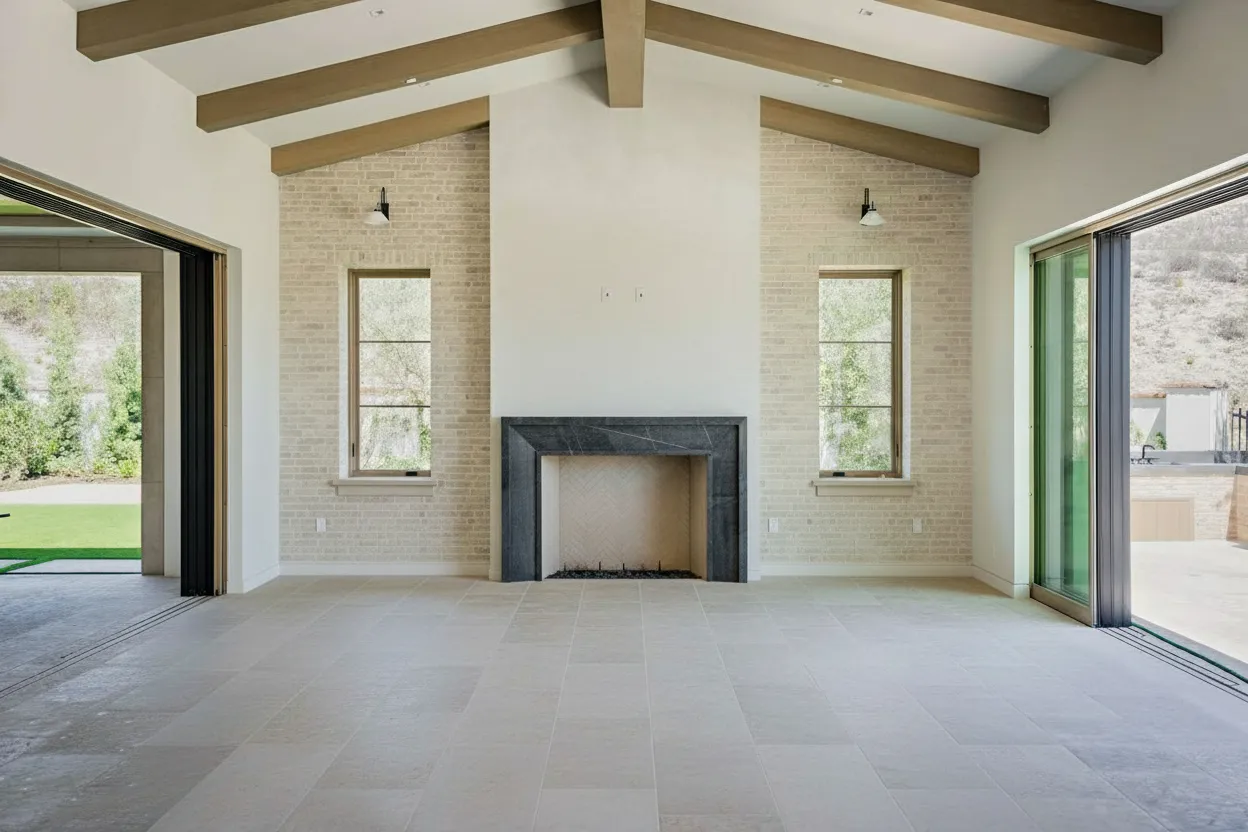
A dead lawn can kill a listing faster than almost anything else. Studies show that curb appeal accounts for 7% of a home’s value, and nothing screams “neglected property” louder than brown, patchy, or drought-stressed grass in your listing photos.
The problem? You can’t always time your photoshoot around perfect lawn conditions. Drought, seasons, tenant neglect, or just bad timing means you’re often stuck with lawn photos that make even beautiful homes look abandoned.
This guide shows you how to fix brown grass in real estate photos—comparing the old Photoshop method (15-30 minutes per image) with modern AI lawn replacement that takes seconds.
Why Lawn Appearance Matters for Real Estate Listings
Before diving into the how-to, let’s look at why this matters:
The Statistics Are Clear
- 94% of realtors recommend improving curb appeal before listing (NAR)
- Homes with excellent curb appeal sell for an average of 7% more than similar homes with poor curb appeal
- First impressions are formed in 7 seconds—and the lawn is often the first thing buyers see in listing photos
- Brown lawns signal neglect—buyers subconsciously assume if the lawn is dead, what else hasn’t been maintained?
When You’ll Need Lawn Replacement
- Drought conditions — California, Texas, and Southwest listings especially
- Winter/dormant grass — Shooting in January? That’s brown grass territory
- New construction — Freshly seeded lawns that haven’t established yet
- Rental turnovers — Previous tenants didn’t exactly prioritize lawn care
- Pool drain areas — Chemical damage creates permanent brown spots
- Pet damage — Those yellow patches aren’t going anywhere before your shoot
The Old Way: Manual Photoshop Lawn Replacement
Let’s be honest about what manual lawn replacement actually involves:
Step-by-Step Photoshop Method
- Select the lawn area — Use the Quick Selection Tool or Pen Tool to isolate the grass (5-10 minutes for complex lawns with edges near plants/hardscape)
- Find a replacement texture — Source a green grass image at similar angle and lighting
- Transform and warp — Scale, rotate, and perspective warp the grass to match your photo
- Blend the edges — Mask carefully around landscaping, walkways, driveways
- Match color and tone — Adjust hue/saturation, curves, and color balance
- Add realistic shadows — Paint in shadows from trees, structures, etc.
- Fine-tune details — Clone stamp around edges, fix any obvious patterns
Time Required: 15-30 Minutes Per Image
For a standard listing with 3-5 exterior shots, you’re looking at 1-2 hours just on lawn fixes. And that’s if you’re proficient with Photoshop.
Common Problems with Manual Replacement
- Repeating patterns — Cloned grass textures create obvious tiling
- Lighting mismatches — The replacement grass has different sun direction
- Edge artifacts — Halos and visible seams around landscaping
- Inconsistent scale — Grass blades look too big or too small
- Color accuracy — Getting the green to look natural is harder than it seems
The New Way: AI Lawn Replacement in Seconds
AI has completely changed the lawn enhancement game. Here’s how modern AI tools approach the problem differently:
How AI Lawn Replacement Works
- Semantic understanding — AI identifies what’s lawn vs. landscaping vs. hardscape
- Intelligent enhancement — Rather than replacing with a texture, AI transforms the existing grass
- Lighting preservation — Shadows, highlights, and environmental lighting are maintained
- Edge awareness — AI handles complex boundaries around plants, walkways, and structures
- Photorealistic output — Results look natural because they’re based on the actual scene
Time Required: 10-30 Seconds Per Image
Upload your image, select lawn enhancement, download the result. That’s it.
Step-by-Step: AI Lawn Replacement with Bright Shot
Here’s exactly how to transform a brown lawn in seconds:
Step 1: Upload Your Image
Drag and drop your exterior real estate photo into Bright Shot. The AI automatically detects the image type and suggests relevant enhancements.
Step 2: Select Lawn Enhancement
Click on the Lawn Enhancement feature. The AI will:
- Identify all grass/lawn areas in the image
- Analyze the current condition
- Prepare the enhancement
Step 3: Choose Your Enhancement Level
Select from:
- Natural — Subtle green enhancement, maintains original character
- Lush — Vibrant, healthy-looking lawn
- Custom — Adjust the intensity to your preference
Step 4: Download Your Result
Review the before/after comparison and download your enhanced image. The whole process takes under 30 seconds.
AI Lawn Replacement: Before & After Examples
Example 1: Drought-Stressed Front Yard
Before: Brown, crunchy lawn typical of Southern California summer listings After: Lush green grass that makes the home look inviting and well-maintained
Example 2: Winter Dormant Grass
Before: Yellow/tan dormant Bermuda grass in January After: Fresh green lawn that doesn’t scream “winter photo”
Example 3: Patchy Lawn with Pet Damage
Before: Spotted with yellow patches from dog urine After: Uniform green with natural variation that looks realistic
Example 4: New Construction Site
Before: Mud, sparse seed, and construction debris After: Established lawn that helps buyers visualize the finished property
Example 5: Backyard Pool Area
Before: Chemical damage and foot traffic wear patterns After: Clean, even lawn that complements the pool
Comparing Lawn Replacement Methods
| Feature | Manual Photoshop | AI (Bright Shot) |
|---|---|---|
| Time per image | 15-30 minutes | 10-30 seconds |
| Learning curve | High (Photoshop expertise required) | None |
| Edge quality | Depends on skill | Consistently clean |
| Lighting match | Manual adjustment | Automatic |
| Cost per image | Your time | Included in subscription |
| Consistency | Varies | Identical every time |
| Batch processing | Tedious | Fast |
Tips for Best AI Lawn Replacement Results
1. Start with Good Base Photos
AI enhancement works best when:
- The lawn area is clearly visible (not obscured by heavy shadows)
- The photo is well-exposed overall
- There’s enough resolution to work with (at least 1500px wide)
2. Consider Lighting Conditions
Even AI can’t work miracles. For best results:
- Shoot during golden hour when possible
- Avoid harsh midday shadows across the lawn
- Overcast days actually work great for even lawn appearance
3. Be Realistic About Boundaries
AI handles edges well, but complex scenarios need attention:
- Dense landscaping borders look natural
- Scattered leaves or debris may need separate cleanup
- Hardscape edges (walkways, driveways) process cleanly
4. Match Other Enhancements
If you’re using AI for lawn enhancement, consider:
- Sky replacement — Match the mood of your new green lawn
- Lighting enhancement — Consistent processing across the image
- Object removal — Clear trash bins, hoses, or debris first
Frequently Asked Questions
Is AI lawn replacement considered “false advertising”?
No more than traditional photo editing. You’re enhancing the presentation, not misrepresenting the property. Buyers understand that listing photos are professionally edited. The lawn’s actual condition is visible during showings.
Does lawn enhancement work on all types of grass?
Yes. AI lawn enhancement works on:
- Bermuda grass
- Kentucky Bluegrass
- Fescue
- St. Augustine
- Zoysia
- And all other common lawn types
What about completely dead lawns?
AI enhancement transforms brown/dormant grass into green. For lawns that are truly dead (exposed dirt patches), you may need additional object removal or more significant edits.
Can I use lawn enhancement for drone/aerial photos?
Absolutely. AI lawn enhancement works on both ground-level and aerial drone photography. The AI adapts to the viewing angle automatically.
How do I handle lawns with snow coverage?
Snow removal is a separate process from lawn enhancement. You’d want to first remove the snow (or wait for better conditions), then apply lawn enhancement to the revealed grass.
Is this MLS compliant?
Yes. Photo enhancement including lawn appearance is standard practice and accepted by all major MLS systems. Many professional real estate photographers include lawn enhancement as part of their standard editing workflow.
The Bottom Line
Brown lawns don’t have to kill your listings anymore. What used to require 15-30 minutes of skilled Photoshop work now takes seconds with AI lawn replacement.
For real estate photographers and agents shooting dozens or hundreds of listings per year, AI lawn enhancement isn’t just faster—it’s a fundamental shift in workflow efficiency. You can deliver better results to clients, faster, and free up your time for what actually matters: shooting more listings.
Ready to transform your lawn photos? Try Bright Shot’s AI lawn enhancement free and see the difference yourself.
Published by the Bright Shot team. We help real estate professionals create stunning listing photos with AI-powered photo enhancement, virtual staging, and more.